Hello there, future website owner! Are you ready to dive into the exciting world of website creation? You've picked a fantastic platform with WordPress – it's powerful, flexible, and incredibly user-friendly once you get the hang of it. Whether you're dreaming of a personal blog, a business site, an online portfolio, or even an e-commerce store, WordPress is the perfect tool to bring your vision to life. This guide is designed to be your friendly companion, walking you through every step of setting up a beautiful and effective WordPress website.
We'll break down the entire process into easy-to-follow sections, covering everything from getting your site online to making it look great, adding amazing features, creating compelling content, and ensuring people can find it easily. No technical jargon here, just straightforward advice and practical tips to get you started on your journey. By the end of this tutorial, you'll have a fully functional WordPress website that you can be proud of!
Let's embark on this adventure together and transform your ideas into a stunning online presence. We'll make sure you feel confident and capable every step of the way. So, grab a cup of your favorite beverage, get comfortable, and let's start building your amazing WordPress website!
Table of Contents
Introduction: Welcome to WordPress!
Choosing Your Domain Name and Web Hosting
Installing WordPress: The Easy Way
Exploring the WordPress Dashboard
Picking the Perfect Theme
Must-Have Plugins for Functionality and Security
Crafting Engaging Content: Pages and Posts
Optimizing for Search Engines (SEO Basics)
Boosting Website Performance
Essential Website Maintenance & Security Tips
Launching Your Website and Beyond
Frequently Asked Questions (FAQ)
Key Takeaways
1. Introduction: Welcome to WordPress!
Welcome to the world of WordPress! It's an incredibly popular and versatile platform that powers over 43% of all websites on the internet. This means a huge community of users and developers constantly working to improve it and create amazing tools for you. WordPress is what's known as a Content Management System (CMS), which essentially means it provides all the tools you need to create, manage, and publish content on your website without needing to write a single line of code.
The beauty of WordPress lies in its flexibility. It started as a blogging platform but has evolved into a full-fledged website builder capable of handling almost any kind of site you can imagine. From simple personal blogs to complex corporate websites, online stores, and news portals, WordPress can do it all. You have full control over your website's design, content, plugins, themes, and SEO.
This guide will demystify the process of setting up your WordPress site. We'll walk you through each step, making sure you understand what you're doing and why it matters. By the time you're finished, you'll not only have a live website but also the confidence to manage and grow it effectively. Let's get started on this exciting journey!
2. Choosing Your Domain Name and Web Hosting
Before we even think about installing WordPress, you need two fundamental things: a domain name and web hosting. Think of your domain name as your website's street address (like yourwebsite.com) and web hosting as the land where your website's house (all your files and data) will live. You can't have a house without land, and people can't find it without an address!
Choosing a good domain name is crucial. It should be memorable, easy to type, and ideally reflect your brand or the purpose of your website. Try to keep it short, avoid numbers and hyphens if possible, and stick with a .com extension if available, although other options like .net, .org, or specific country extensions are also good. Do some brainstorming and check for availability before you commit!
For web hosting, you'll want a reliable provider that offers good performance, strong security, and excellent customer support. Many hosting companies offer WordPress-optimized hosting plans that make the setup process much easier. Some popular choices include SiteGround, Kinsta, and Bluehost. Most hosting providers simplify WordPress installation with one-click tools.
3. Installing WordPress: The Easy Way
Once you have your domain name and web hosting sorted, it's time to install WordPress. This might sound intimidating, but most modern hosting providers have made it incredibly simple, often with a "one-click install" feature. You typically won't need any technical skills for this step.
Here's a general overview of how it works: You'll log into your hosting account's control panel, often called cPanel. Look for an installer tool like Softaculous Apps Installer. This tool will list various content management systems, and you'll simply select WordPress.
The installer will then guide you through a few basic settings. You'll choose the domain where you want to install WordPress, create an admin username (avoid using "admin" for security reasons!), a strong password, and an administrator email. After that, click install, and within a few minutes, WordPress will be set up on your domain. It's truly that easy! Once installed, you can access your WordPress dashboard by going to yourdomain.com/wp-admin.
4. Exploring the WordPress Dashboard
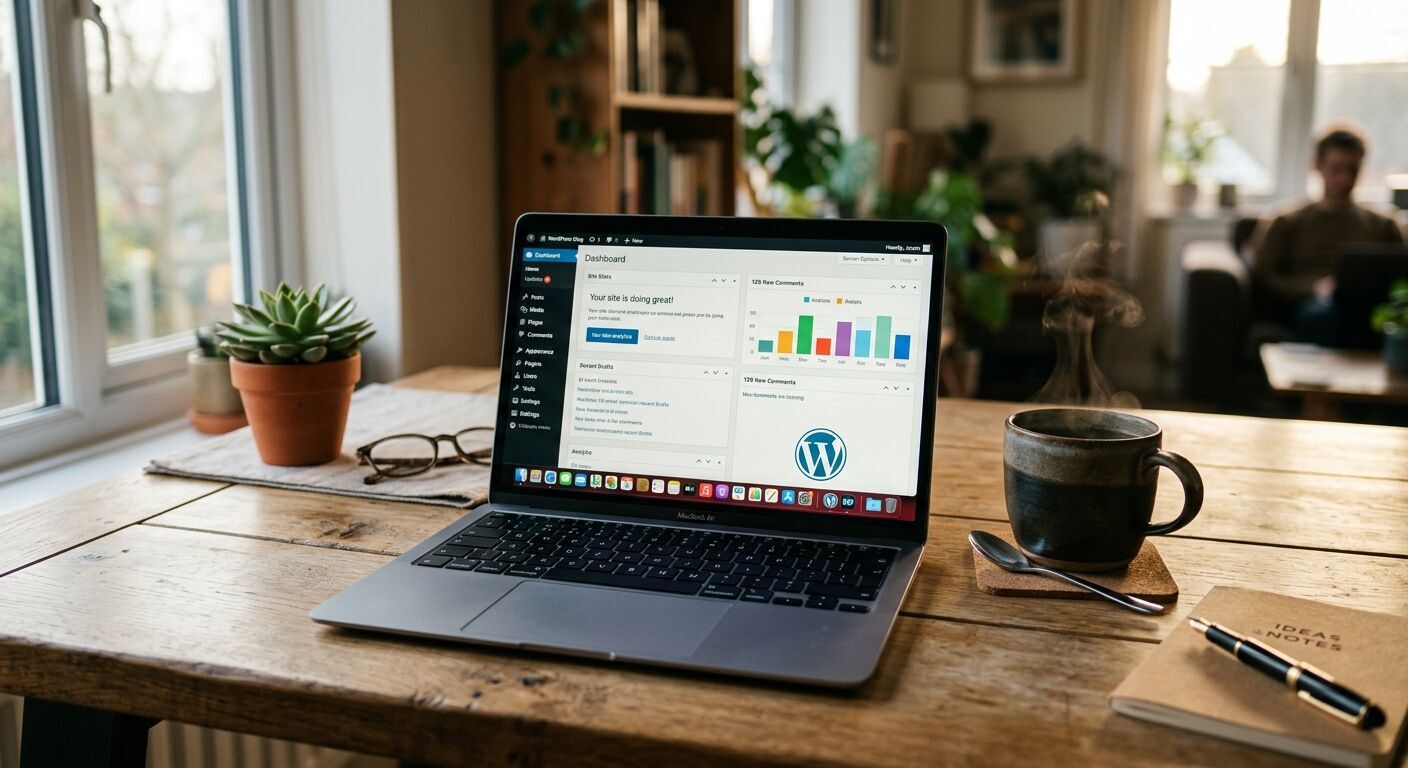
Congratulations! You've successfully installed WordPress. Now, let's get acquainted with your new command center: the WordPress dashboard. This is where you'll manage virtually every aspect of your website, from creating content to customizing its appearance and adding new functionalities. Don't worry if it looks a bit overwhelming at first; we'll break down the key areas.
On the left-hand side, you'll find the main navigation menu. Here are some of the most important sections:
Posts: This is where you'll write and manage your blog posts.
Pages: For static content like an "About Us" or "Contact Us" page.
Appearance: Customize your site's design, including themes and widgets.
Plugins: Extend your site's functionality with add-on tools.
Users: Manage user accounts and their roles on your website.
Settings: Configure core aspects of your site, such as permalinks, reading, and writing options.
Take some time to click around and explore. Familiarize yourself with where everything is located. You can also customize your dashboard by dragging and dropping widgets on the main screen to show the information most relevant to you. The more you use it, the more comfortable you'll become!
5. Picking the Perfect Theme
Now for the fun part: making your website look amazing! In WordPress, the visual design and layout of your site are controlled by something called a "theme." There are thousands of themes available, both free and premium, allowing you to completely change your site's appearance without touching any code.
When choosing a theme, consider its:
Performance: Is it lightweight and fast-loading? Speed is vital for visitors and search engines.
6. Must-Have Plugins for Functionality and Security
Plugins are like apps for your WordPress website; they extend its functionality without you needing to write custom code. There's a plugin for almost anything you can imagine, from enhancing SEO to adding contact forms, boosting security, and improving performance. However, it's important not to go overboard, as too many poorly coded plugins can slow down your site.
Here are some categories of essential plugins you should consider:
Security: Plugins like Wordfence or Sucuri help protect your site from malware, hacking attempts, and other vulnerabilities.
SEO: Tools like Yoast SEO or Rank Math are indispensable for optimizing your content and helping search engines find your site. They assist with meta descriptions, XML sitemaps, and more.
Backup: Plugins like UpdraftPlus ensure you always have a recent copy of your website, safeguarding your data in case something goes wrong.
Performance/Caching: Plugins such as WP Super Cache or LiteSpeed Cache can dramatically speed up your website by serving cached versions of your pages.
Contact Forms: A plugin like Contact Form 7 or WPForms makes it easy to create custom contact forms for your visitors.
You can install plugins by going to Plugins > Add New in your dashboard and searching for them. Once installed, remember to activate them! Regularly update your plugins to ensure compatibility and security.
7. Crafting Engaging Content: Pages and Posts
Now that your site has a great look and essential features, it's time to fill it with amazing content! In WordPress, content primarily comes in two forms: Pages and Posts. Understanding the difference is key to organizing your website effectively.
Pages are generally for static, timeless content like your "About Us," "Contact Us," "Services," or "Homepage." They don't have categories or tags in the same way posts do and are typically hierarchical (you can have sub-pages). To create a new page, simply go to Pages > Add New in your dashboard.
Posts are typically for blog articles, news updates, or other timely content. They are usually displayed in reverse chronological order (newest first) and can be organized using categories and tags, which helps visitors navigate your blog. To create a new post, go to Posts > Add New. Both pages and posts use the WordPress editor, a user-friendly interface for writing and formatting your content, adding images, and embedding media.
8. Optimizing for Search Engines (SEO Basics)
You've built a beautiful website, but what good is it if no one can find it? That's where Search Engine Optimization (SEO) comes in. SEO is the process of optimizing your website to rank higher in search engine results (like Google) when people search for topics related to your site. The good news is that WordPress is inherently SEO-friendly, and with a few best practices and plugins, you can significantly improve your visibility.
Here are some basic SEO tips for your WordPress site:
Install an SEO Plugin: As mentioned, Yoast SEO or Rank Math are fantastic for guiding you through on-page optimization, helping you craft compelling meta titles and descriptions, and generating XML sitemaps.
Optimize Permalinks: Go to Settings > Permalinks and choose "Post name" for a clean, SEO-friendly URL structure.
Create Quality Content: Focus on valuable, relevant content that genuinely answers user questions and uses keywords naturally.
Optimize Images: Compress images for faster loading and use descriptive alt text so search engines (and visually impaired users) understand what the image is about.
Mobile-Friendliness: Ensure your theme is responsive, as Google prioritizes mobile-friendly websites.
Internal Linking: Link to other relevant pages and posts within your own website to help users and search engines navigate your content.
Don't Discourage Search Engines: Go to Settings > Reading and ensure "Discourage search engines from indexing this site" is unchecked.
By implementing these basic SEO practices from the start, you'll lay a strong foundation for your website's organic visibility.
9. Boosting Website Performance
Website speed is more important than ever. Visitors expect fast-loading sites, and search engines like Google use page speed as a ranking factor. A slow website can lead to higher bounce rates and a poor user experience. Fortunately, there are several ways to improve your WordPress site's performance.
Here are some key strategies:
Choose a Fast Hosting Provider: A reliable and fast hosting service ensures your website loads quickly.
Use a Lightweight Theme: Some themes are bloated with unnecessary features, slowing down your site. Opt for themes designed for speed.
Install a Caching Plugin: Plugins like WP Super Cache, LiteSpeed Cache, or WP Rocket create static versions of your pages, serving them faster to returning visitors.
Optimize Images: Large image files are often the biggest culprits for slow loading times. Use image compression plugins (like Smush or Imagify) and ensure images are sized appropriately before uploading.
Minimize Plugins: While plugins add functionality, too many can weigh down your site. Deactivate and delete any unused plugins.
Keep WordPress, Themes, and Plugins Updated: Updates often include performance improvements and security fixes.
Regularly test your website's speed using tools like Google PageSpeed Insights, Pingdom Tools, or GTmetrix to identify areas for improvement. A fast website makes for happier visitors and better search engine rankings.
10. Essential Website Maintenance & Security Tips
Just like a car, your WordPress website needs regular maintenance to run smoothly and securely. Neglecting maintenance can lead to slow performance, security vulnerabilities, and potential data loss. Making these tasks a routine will save you a lot of headaches in the long run.
Here are critical maintenance and security tips:
Regular Backups: This is paramount! Use a backup plugin (like UpdraftPlus) to schedule automatic backups of your entire site (files and database) and store them in a safe, off-site location (like Dropbox or Google Drive).
Keep Everything Updated: Regularly update your WordPress core software, themes, and plugins. Developers release updates for new features, bug fixes, and crucially, security patches.
Strong Passwords and User Roles: Use strong, unique passwords for all WordPress user accounts. Limit administrative access to only those who absolutely need it. Avoid using "admin" as your username.
Install a Security Plugin: Plugins like Wordfence or Sucuri can scan for malware, block malicious traffic, and provide a firewall for your site.
Use an SSL Certificate (HTTPS): Ensure your website uses HTTPS. This encrypts data transferred between your website and visitors, boosting security and trust, and it's a small SEO ranking factor. Many hosts offer free SSL certificates.
Monitor Your Site: Keep an eye on your site's health and performance using tools like Google Analytics and Google Search Console.
Proactive maintenance and robust security practices are vital for a healthy, long-lasting WordPress website.
11. Launching Your Website and Beyond
You've done it! You've set up WordPress, chosen a theme, added essential plugins, crafted engaging content, optimized for SEO, and considered performance and security. Now, it's time to officially launch your masterpiece to the world!
Before hitting the "publish" button on your entire site, do a final review:
Check all links to ensure they work.
Proofread all your content for typos and grammatical errors.
Test your forms to make sure they're sending submissions correctly.
View your site on different devices (mobile, tablet, desktop) to confirm responsiveness.
Ensure "Discourage search engines from indexing this site" is unchecked in Settings > Reading.
Once you're confident, it's time to announce your site! Share it on social media, tell your friends and family, and start promoting your content. Remember, building a website is not a one-time task; it's an ongoing journey. Continuously create fresh, valuable content, engage with your audience, monitor your site's performance, and stay updated with WordPress best practices. Your website is a living entity, and with your dedication, it will continue to grow and thrive!
Frequently Asked Questions (FAQ)
Q: What's the difference between WordPress.com and WordPress.org?
A: WordPress.org (which this guide focuses on) is the self-hosted version, meaning you download the software for free and host it on your own web hosting account, giving you full control and flexibility. WordPress.com is a hosted service where WordPress manages everything for you, but it comes with more limitations unless you pay for premium plans.
Q: How much does it cost to build a WordPress website?
A: The WordPress software itself is free. However, you'll typically incur costs for a domain name (around $10-$15 per year) and web hosting (ranging from $5-$30+ per month, depending on your needs). Premium themes or plugins are optional but can add to the cost. Most beginners can build a professional site for $150-$300 in the first year.
Q: Do I need coding knowledge to use WordPress?
A: No, absolutely not! WordPress was designed for non-technical users. If you can use a word processor like Microsoft Word, you have sufficient skills to build and manage a WordPress website. While coding knowledge can be helpful for advanced customizations, it's not required for general setup and content management.
Q: How often should I update my WordPress site?
A: You should aim to keep your WordPress core, themes, and plugins updated regularly. Updates often include critical security patches and performance improvements. It's a good practice to back up your site before performing any major updates.
Q: What are permalinks and why are they important for SEO?
A: Permalinks are the permanent URLs to your individual posts, pages, and other content. An SEO-friendly permalink structure, such as "Post name" (e.g., yourwebsite.com/your-post-title/), makes your URLs readable and descriptive, which helps both users and search engines understand what the page is about.
Q: How can I speed up my WordPress website?
A: Key ways to speed up your WordPress site include using a fast hosting provider, choosing a lightweight and optimized theme, installing a caching plugin, optimizing all your images, and minimizing the number of unnecessary plugins.
Key Takeaways
WordPress is a powerful, flexible, and user-friendly platform for creating almost any type of website, offering full control over your site.
The essential first steps are securing a domain name (your site's address) and reliable web hosting (where your site lives).
Installing WordPress is typically easy, often done with a "one-click" installer provided by your web host.
The WordPress dashboard is your control center for managing all aspects of your site, from content to design and functionality.
Themes dictate your website's visual appearance; choose one that is responsive, fast, and aligns with your brand.
Plugins extend your site's capabilities, adding features like security, SEO, and contact forms. Use them wisely and keep them updated.
Content is created as either "Pages" (static content) or "Posts" (blog entries), both managed through the intuitive WordPress editor.
Implementing basic SEO practices from the start, such as good permalinks and an SEO plugin, is crucial for your site's visibility in search engines.
Website performance is vital for user experience and SEO; optimize images, use caching plugins, and choose fast hosting.
Regular maintenance, including backups, updates, and security measures, is essential for a healthy and secure website.
Launching your site is just the beginning; continuously create valuable content, engage with your audience, and monitor your site's growth.

 Alex Martun